Appearance
Black & white darkroom printing
An enlarger projects your negative onto light-sensitive photographic paper. That exposure creates a latent image, which chemistry then makes visible.
The process is forgiving of a first attempt and rewards a second. Most of the skill is in judging exposure and contrast, and both are learned by making test prints.
How darkroom printing works
Printing in the darkroom works much like exposing a frame in-camera. In both cases, light passes through a lens, striking a light-sensitive surface. When making a darkroom print, however, you're working with an enlarger instead of a camera, and with photographic paper instead of film.
The enlarger works like a camera in reverse. A lamp inside it shines through your negative, and a lens focuses that image onto the paper below. The light exposes the silver halides in the paper, forming a latent image that stays invisible until it is developed.
Chemical process
Developing a print takes three chemical stages, each in its own tray. You move the print from one tray to the next with print tongs.
Work under a red safelight. The room lights can go on once the print is in the fixer.
| Step | Time | What it does |
|---|---|---|
| Developer | 1 to 2 minutes | Brings out the image |
| Stop bath | 10 to 30 seconds | Halts development |
| Fixer | 1 minute 30 seconds to 2 minutes | Makes the print safe in the light |
- Use a developer made for paper, at 20°C.
- Leave the print in the developer for the full time, even if it looks done early. If it is too dark, shorten the exposure instead.
- Do not leave prints in the fixer longer than they need. Fixer soaks into the paper and takes longer to wash out.
- Rock each tray gently the whole time the print is in it.
Determine exposure settings
There are two main ways to control how much light reaches the paper: aperture and exposure time. The aperture is the opening inside the enlarger's lens, and exposure time is how long the light is on. These two settings work together to determine the final print's exposure.
Changing the enlarger height means starting again
Once you have started making test strips or prints, leave the height alone. Even a small adjustment alters both the image size and the exposure.
Aperture
Unlike in-camera exposure, the aperture in darkroom printing has less creative effect. It mainly controls how much light is projected, and can slightly affect sharpness due to lens performance.
For simplicity, beginner printers should stop the lens down two stops from wide open. This improves sharpness without requiring long exposures.
Exposure time
A timer connected to the enlarger switches the light on and off precisely. Most darkrooms use a digital or mechanical timer to set exposures in seconds.
To find the right exposure, we use test strips: small sections of paper exposed at different times. To make one:
- Cut a piece of photographic paper into a strip.
- Place it across the highlights: the brightest part of the picture where you still want detail, such as a face or a white shirt.
- Cover most of the strip with card or black paper.
- Expose the whole uncovered part for 2 seconds, then slide the card along to uncover the next section.
- Repeat until the whole strip is uncovered. The first section ends up with the most light, 8 seconds, and the last with the least, 2 seconds.
After developing the strip, find the section where the highlights first show detail without turning grey. That is your exposure time. Keep it simple: the time sets the highlights, and contrast sets the shadows. If the darkest parts look too grey or too black at that time, change the contrast filter, not the time.
An enlarger exposure scale does the same job on a single sheet, which wastes less paper and keeps each test clearly labelled. It is what we use in our own darkroom.
Contrast filters
Contrast filters allow you to control the tonal range of your black & white prints. Contrast sets how deep the blacks are and how bright the whites appear. It also sets how much separation there is between the tones in between.
You can control contrast either by selecting a specific type of photographic paper (graded) or by using contrast filters with multigrade paper.
Graded paper
Graded paper has a fixed contrast level, and each grade corresponds to a different level of contrast:
- Grade 0 to 1: low contrast. Useful for taming contrasty negatives.
- Grade 2: medium contrast. A standard starting point.
- Grade 3 to 5: high contrast. Helps boost flat or underexposed negatives.
The paper's grade is usually printed on the box or individual packaging, often as a number. With graded paper, pick the grade from your negative's density and the look you want. Remove or switch off any contrast filters in the enlarger.
Multigrade paper
Multigrade paper is more flexible. It responds to coloured contrast filters placed in the light path of your enlarger. These filters adjust the paper's contrast without needing to switch to a different type of paper.
- Lower-numbered filters (00 to 1): produce softer, low-contrast prints.
- Middle filters (2 to 3): provide a standard or balanced contrast.
- Higher-numbered filters (4 to 5): produce stronger, high-contrast prints.
Contrast filters are often part of a numbered set from 00 (softest) to 5 (hardest). Multigrade paper has two emulsions: one gives low contrast and one gives high. Yellow filters favour the low-contrast one, and magenta filters favour the high-contrast one. On a colour enlarger, you set contrast with the yellow and magenta dials instead. The paper's datasheet lists the settings. With Ilford's filters, grades 00 to 3.5 need the same exposure, and grades 4 and 5 need about twice as long.
You'll often find multigrade paper labelled with terms like "variable contrast", "VC" or "MG" on the box. It is the most commonly used paper in modern darkrooms because it suits so much. It works for test prints and for final prints, across a wide range of negatives.
Dodging and burning
Dodging and burning change the exposure in one part of the print only.
- Dodging holds light back from an area that prints too dark. During the exposure, hold a small card on a wire over that area.
- Burning adds light to an area that prints too light. After the main exposure, give extra time through a hole in a sheet of card.
Keep the tool moving the whole time, so the edge of the change blends in. Make a note of each dodge and burn, so you can repeat the print.
Printing workflow
The diagram below provides a visual overview of the darkroom printing process for black & white photographs. This workflow is designed to help you understand the sequence of actions, and the role of creative decision-making along the way.
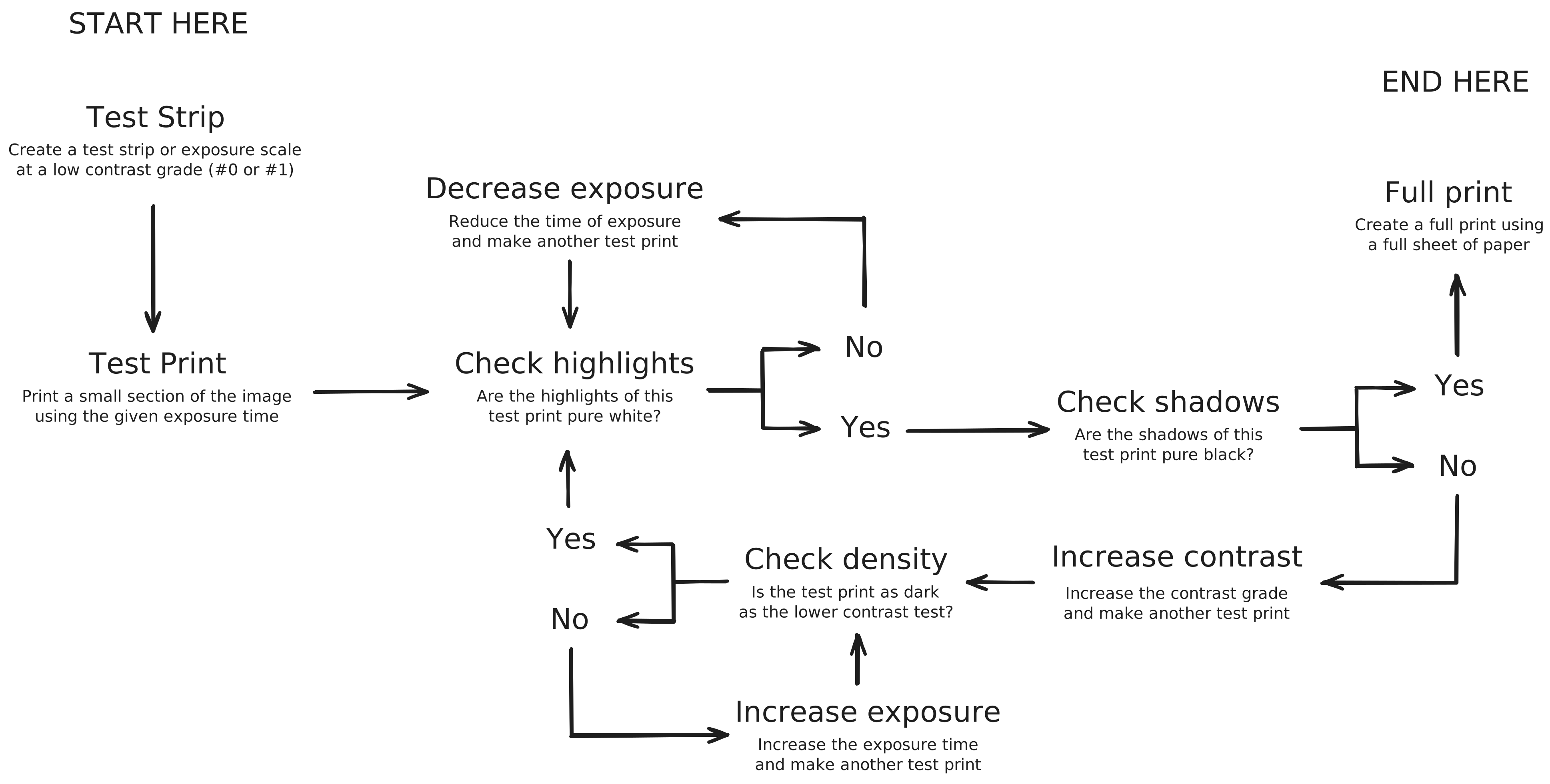
Darkroom printing workflow diagram
INFO
Notes such as "Increase exposure" or "Decrease contrast" are prompts, not precise instructions. Use your own judgement, based on the image you are printing and the results in front of you.
Once you've made a final print you're happy with, decide how many copies to make. It's easier to make extra prints now, while your enlarger and settings are dialled in, than trying to recreate the same print later.
If the print looks wrong
- Too dark or too light overall: change the exposure time.
- Flat and grey, with no real black or white: raise the contrast filter.
- Harsh, with shadows and highlights lost: lower the contrast filter.
- White specks: dust on the negative. Clean it and the carrier with an air blower.
- Grey borders or whites: the safelight is fogging the paper. See testing your safelight.
Next, wash and dry the prints.